The Bounding Box Problem: Why Your Illustrator Layouts Waste Space and How to Fix It
The struggle is real. If you’ve ever tried to arrange complex, organic shapes in Adobe Illustrator, you know the frustration. You select a group of objects, hit "Align," and... nothing happens as expected. The reason? The Bounding Box.
The Invisible Barrier
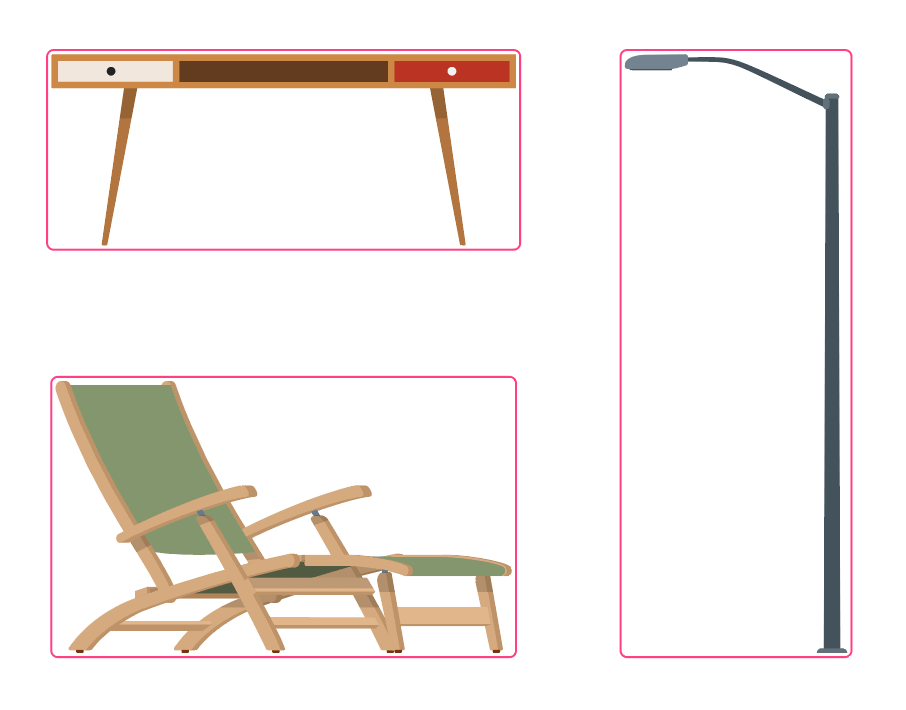
By default, Illustrator sees every object as a simple rectangle. Whether it’s a star, a logo, or a complex piece for a laser cutter, the software only considers its outermost edges. This leads to massive gaps, wasted material, and hours of manual "nudging" to get a tight fit.
When you are prepping sticker sheets or CNC layouts, this "rectangular thinking" costs you money.
Enter True-Shape Nesting
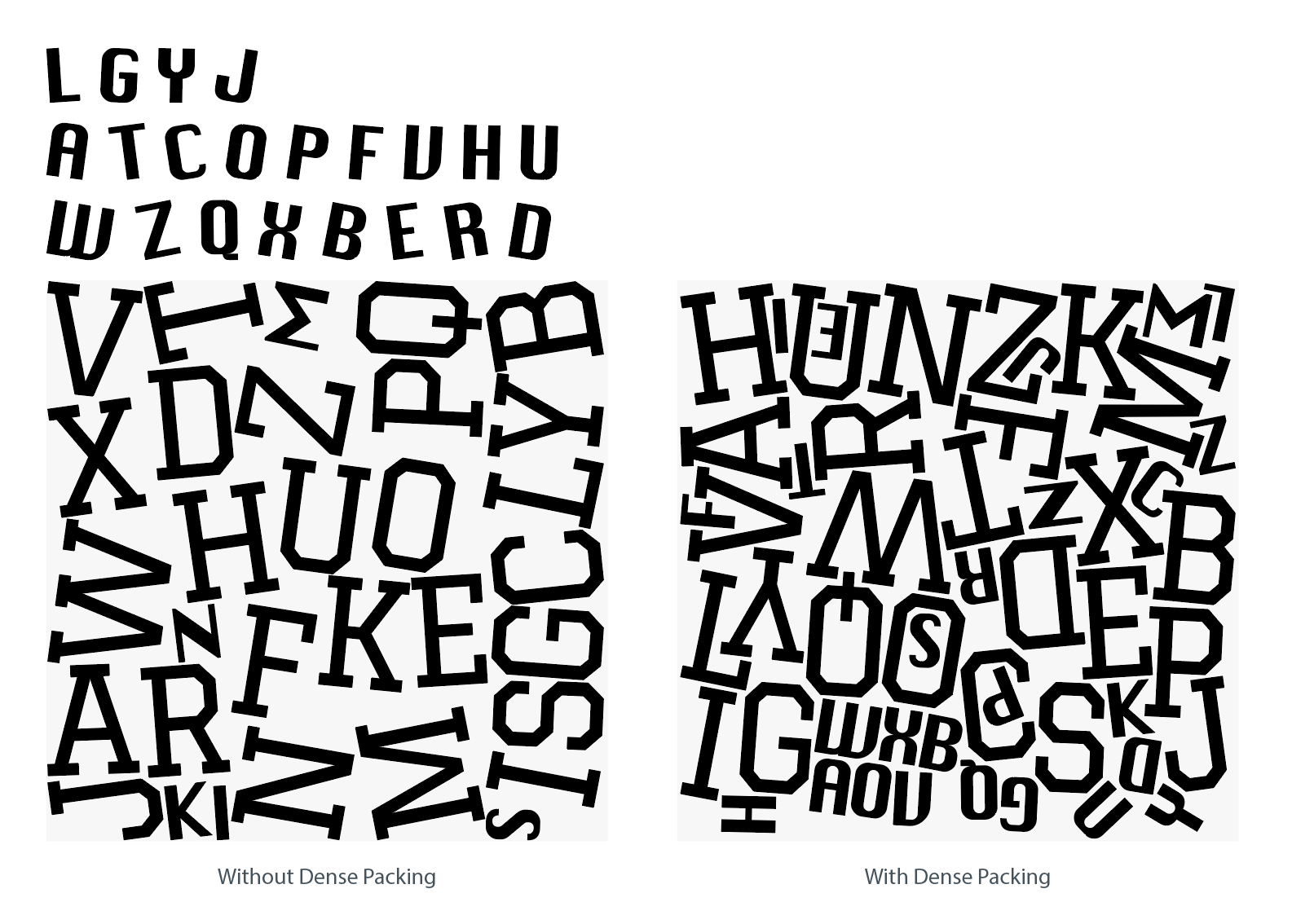
This is exactly why we built the Arrange Master engine. Instead of relying on the bounding box, our custom RLE Math Engine "sees" the actual vector paths.
Here is what happens when you switch to algorithmic nesting:
1. Contour Hugging: Objects physically interlock, filling the negative space of adjacent items.
2. 360° Free Rotation: The engine evaluates 24 different angles for every single object to find the most efficient fit.
3. Rational Logic: Arrange Master stays straight by default and only tilts an object if it mathematically saves significant space.
If you are tired of playing "manual Tetris" in Illustrator, it’s time to let the math do the work for you.
The Result - Zero Waste
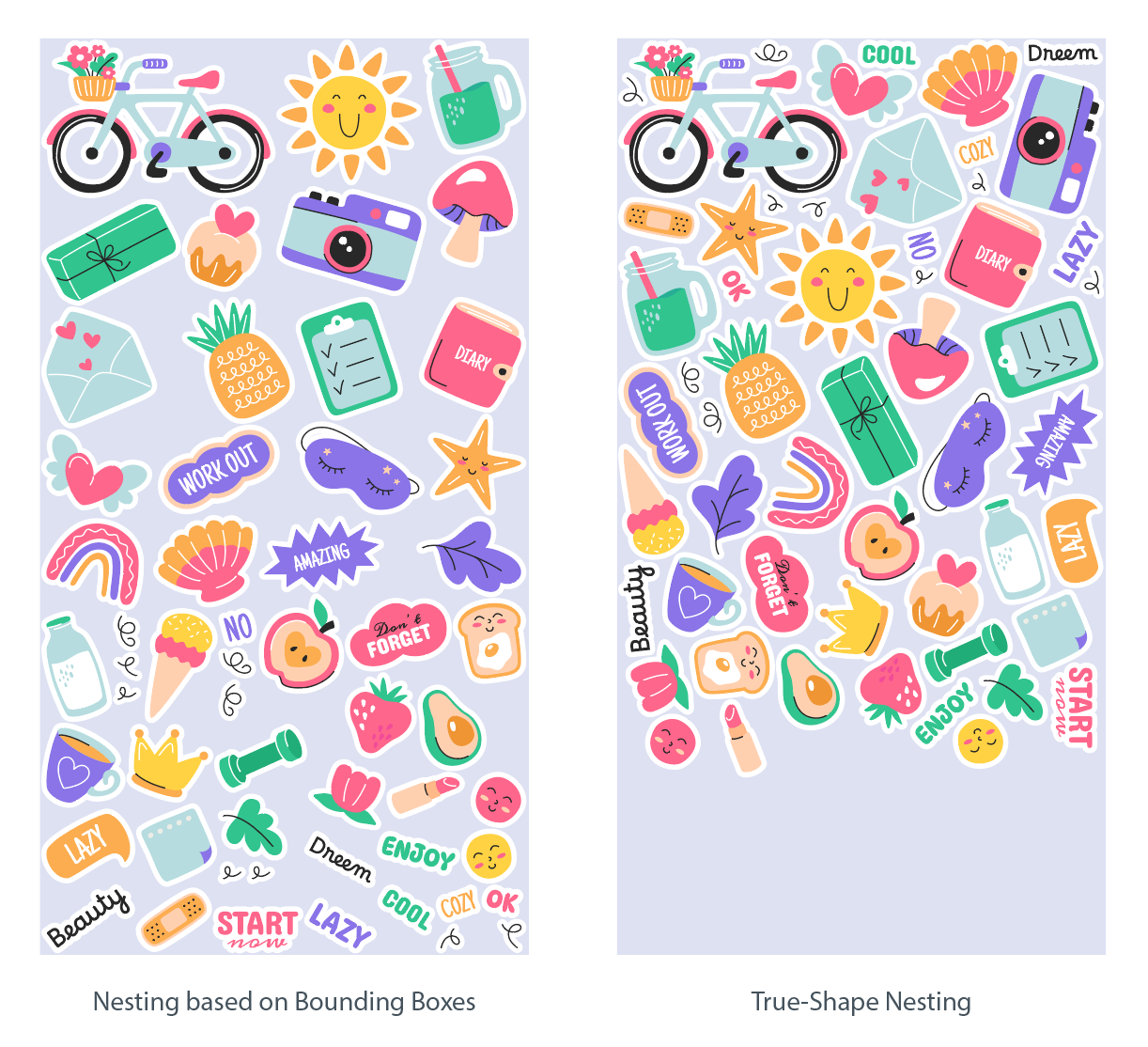
In our latest tests, switching from manual rectangular alignment to True-Shape Nesting saved an average of 20% to 35% of material. That is the difference between fitting 80 stickers on a sheet versus 110.
Ready to try it? Download the Free Demo or Get Arrange Master.